This is CYAN
 We like to promote (and practice) full transparency, and we don’t withhold information for our benefit. So here’s exactly what we did to set up a full-page, printable cyan purge sheet.
We also used a free Photoshop alternative so this is accessible to more people—students, computer enthusiasts, and everyday users—not just design professionals.
General steps:
- File → New Document
- Choose Printer-Ready Formats
- Select A4
- Set Color Mode to CMYK (16-bit)
If your app has a “Background Contents” field (or something similar), select Custom. This usually opens a system color picker where you can type in exact color values instead of guessing.
The ideal setting (cyan-only purge):
CMYK: C: 100% / M: 0% / Y: 0% / K: 0%
Other ways to target (arguably) the same result, depending on what your software supports:
- HSB: H: 196 / S: 100 / B: 94
- LAB: L: 62 / A: -44 / B: -50
- RGB: R: 0 / G: 174 / B: 239
- HEX: #00AEEF
These should yield acceptable results in many common workflows. Just remember: the closer your print job stays in true CMYK without “helpful” driver enhancements, the more reliably you’ll get a clean single-ink purge.
We care about your results
How did it go? Every printer behaves a little differently, and your feedback helps others set the right expectations.
Take a second to let us know how this purge worked for you—good, bad, or somewhere in between.
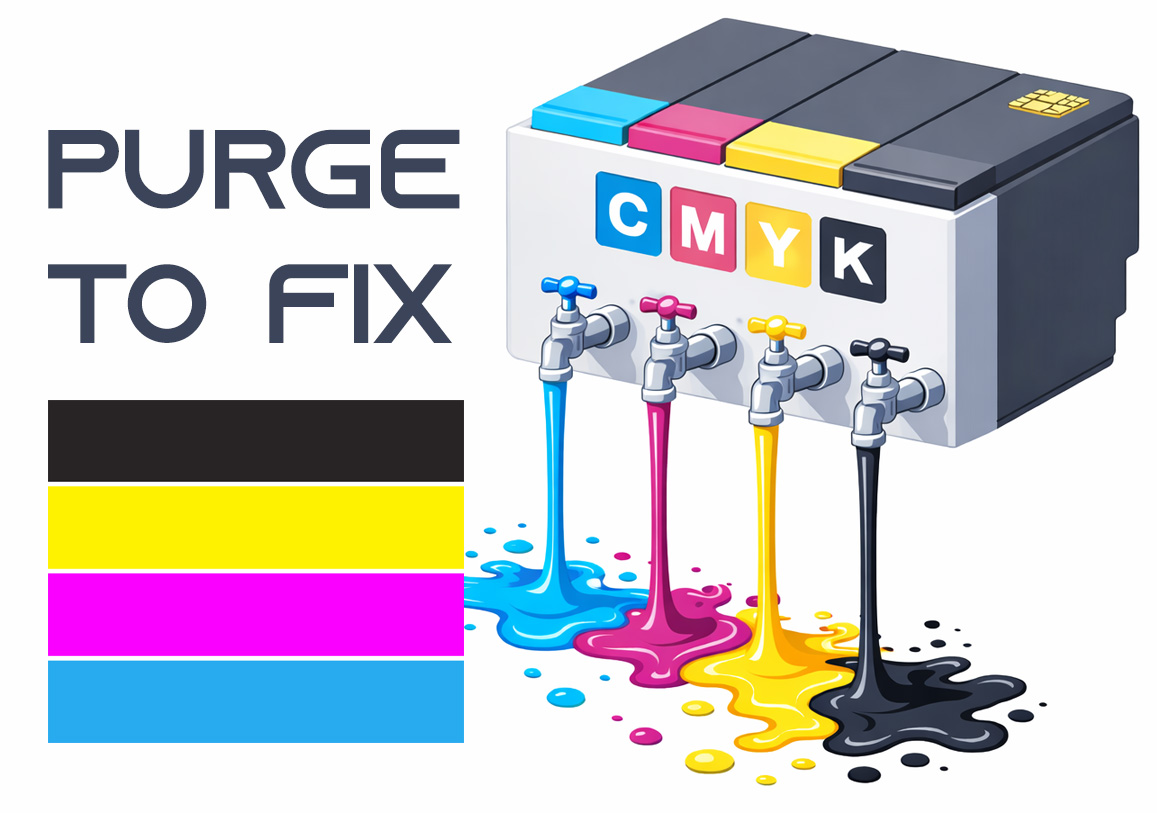
Purge to Fix
Printing a purge sheet can restore print quality and eliminate the need for a professional service visit. This DIY maintenance routine is highly effective for clearing clogged nozzles and dried ink buildup that causes horizontal banding or missing colors. While not a 100% fix for mechanical failure, it is the best first step for ink flow issues.